

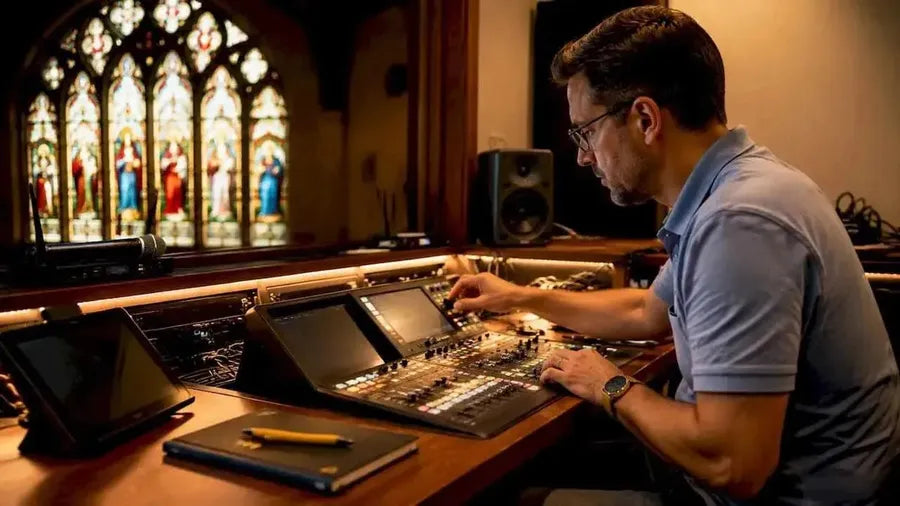
A complete church sound system for online streaming brings together microphones, a PA system, a digital mixer, an audio interface or encoder, and streaming software to broadcast worship services clearly to remote viewers. Get the audio right and your online congregation stays engaged. Get it wrong and they switch off within minutes, regardless of how good the video looks. The Church of England’s own digital guidance puts it plainly: viewers will tolerate a poor picture far longer than they will tolerate echoey or muddy sound.
The core components you need are:
- Microphones for the preacher, worship leader, and band (wired dynamic, wireless lavalier, or condenser)
- PA system for in-room coverage (column or line-array speakers suit most church spaces)
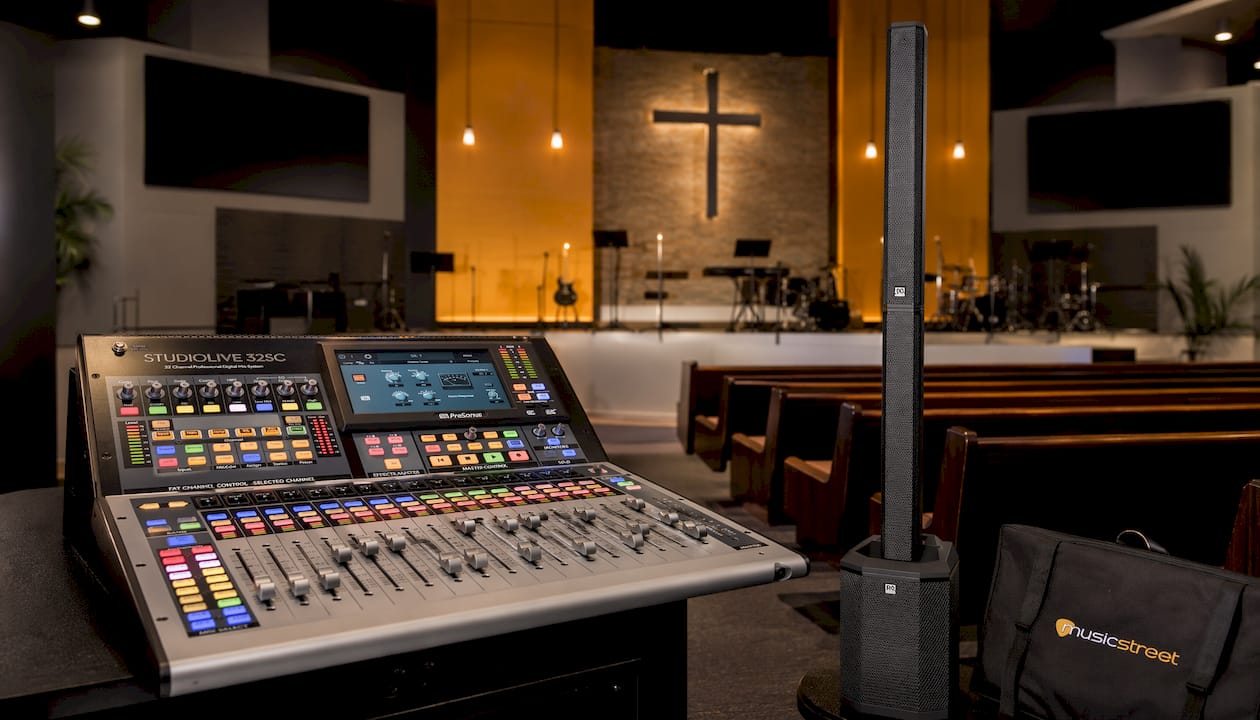
- Digital mixer such as the PreSonus StudioLive 32SC or StudioLive SE 24R for routing and processing
- Audio interface to feed a clean signal from the mixer into your streaming computer
- Streaming software such as OBS Studio (free, Windows and macOS) to combine audio and video sources
- Cameras (one or more) with a stable mount or tripod
- Wired internet connection with sufficient upload speed for reliable broadcast
What church sound system works best for online streaming?
The answer depends on your building, your team size, and whether you are starting from scratch or integrating with existing kit. For most UK churches, the practical hierarchy is: sort the audio chain first, then the video.
PA systems for church streaming
Column PA systems suit most church buildings because they project sound forward along the pews while minimising reflections off stone walls. The HK Audio Polar 8 MkII is a self-contained column system with a built-in subwoofer, covering congregations of up to several hundred without the phase issues you get from multiple point-source boxes placed badly. Its cardioid dispersion pattern also reduces feedback from stage microphones, which matters when you are running multiple open mics for a worship band.
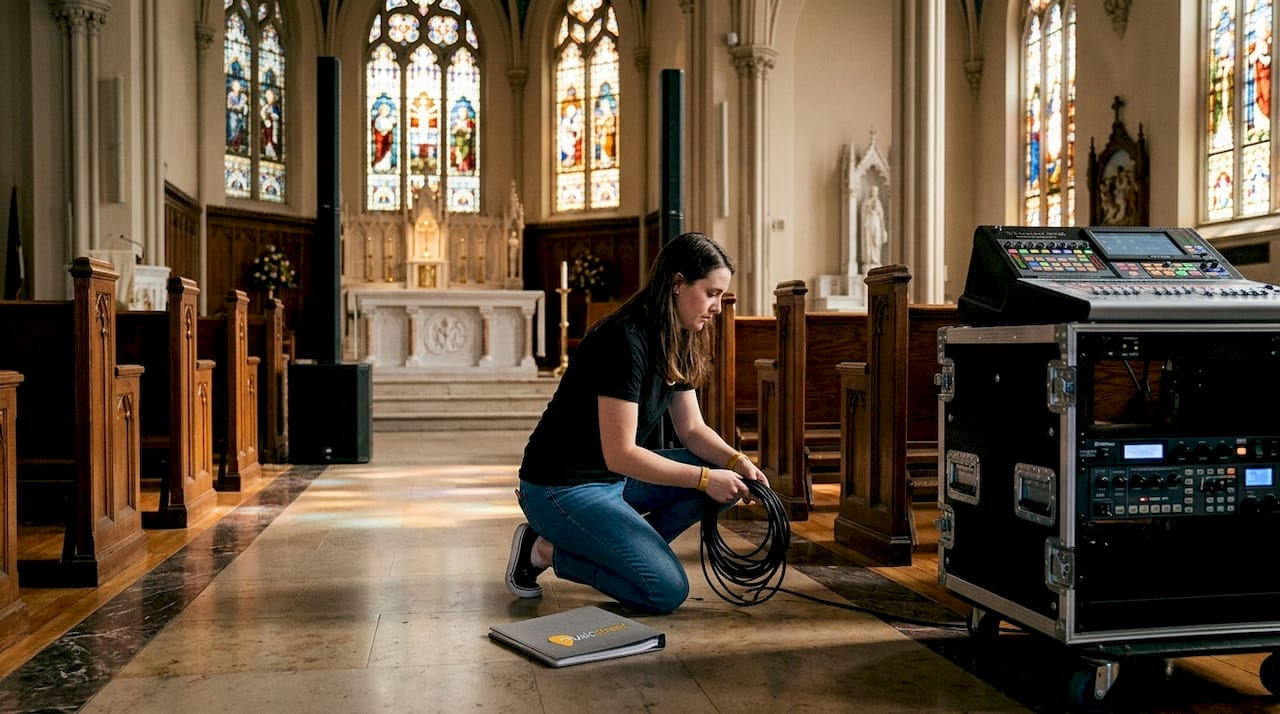
For smaller chapels or side chapels used for midweek services, a pair of compact full-range speakers on stands fed from the mixer’s main outputs is perfectly adequate. The key is that the PA and the streaming audio chain share the same mixer, so what the congregation hears in the room is what the online viewer hears too.
Microphones for preachers and worship bands
- Wireless lavalier (lapel) microphones are the standard choice for preachers. The Rode Wireless GO II clips to clothing and sends a clean signal directly to the mixer without cable clutter.
- Wired dynamic microphones (such as the Shure SM58) work well for worship leaders at a fixed lectern or music stand. They reject off-axis sound, which reduces bleed from nearby instruments.
- Small-diaphragm condenser microphones placed above or in front of the choir or band capture a wide stereo image of congregational singing, which helps online viewers feel part of the service rather than watching from outside it.
- Wireless vocal systems like the Shure GLXD Beta 58A give worship leaders freedom to move without trailing cables across a stage.
For Bluetooth microphones, the convenience is real but the latency can be a problem. Most Bluetooth audio systems introduce 40–100 ms of delay, which creates sync issues when the signal feeds into a digital mixer alongside wired sources. Stick to dedicated digital wireless systems (2.4 GHz or UHF) for anything going to the PA or stream.
Pro Tip: Place lavalier microphones at collarbone height, not on the sternum. Lower placement picks up chest resonance and clothing rustle rather than clear speech. Test by recording a short clip and listening back through headphones before the service starts.
How do digital mixers improve your church live stream?
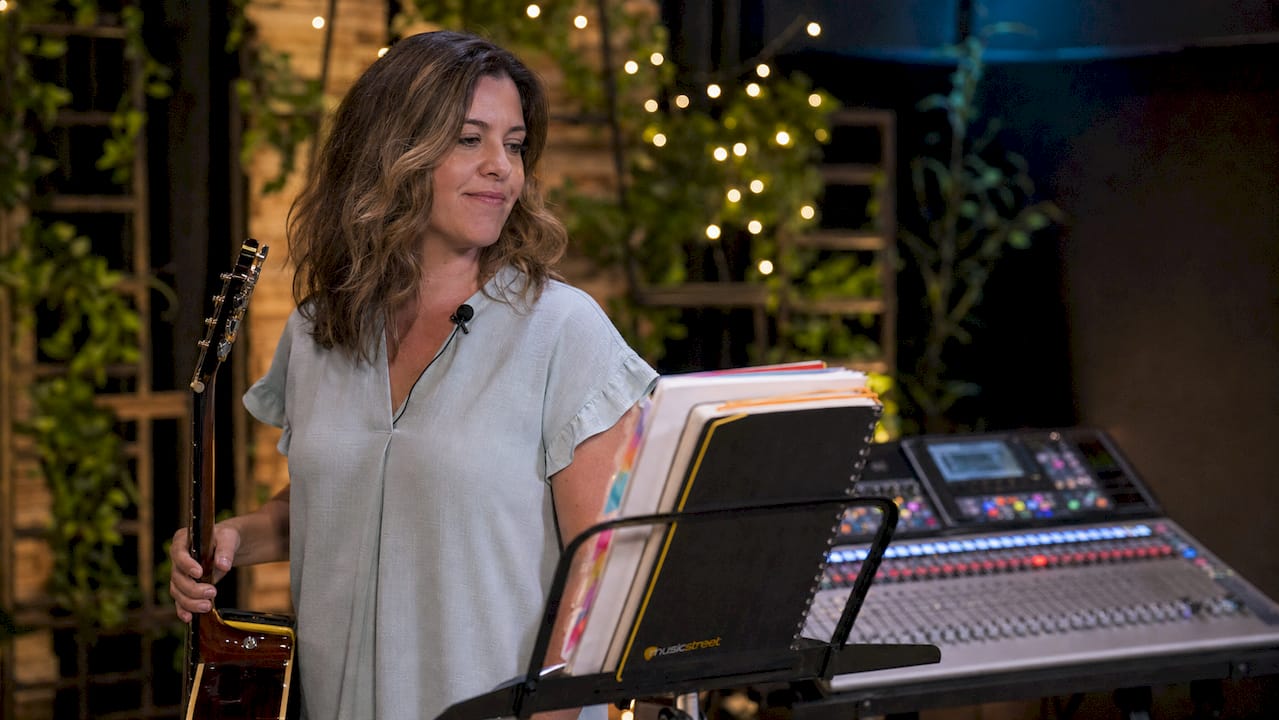
A digital mixer is where your church sound system for online streaming really earns its keep. Unlike an analogue desk, a digital mixer stores scene presets, applies processing to every channel, and routes audio to multiple destinations simultaneously, including the PA, the streaming computer, and in-ear monitor mixes for musicians.
PreSonus StudioLive 32SC and SE 24: what they offer
The PreSonus StudioLive 32SC is a 40-channel digital console with a 128-channel USB audio interface built in. That USB connection is the direct path from your mix to OBS Studio on the streaming PC: no additional audio interface required. It also supports AVB networking, which lets you add PreSonus NSB-series stage boxes and EarMix 16M personal monitor mixers via a single Ethernet cable. The StudioLive SE 24 offers the same 64x64 USB interface and AVB networking in a slightly smaller frame, with 25 motorised faders and Milan-certified AVB for compatibility with third-party networked audio gear.
Key features to look for in any mixer intended for streaming:
- USB audio interface output for direct connection to the streaming PC
- Aux or mix-minus bus to create a separate stream mix without the reverb return (prevents echo on the stream)
- Dante or AVB networking for routing audio across the building without long analogue cable runs
- Recall and scene storage so volunteers can load a saved show file each Sunday without rebuilding the mix from scratch
- Onboard dynamics and EQ on every channel to control feedback and level consistency
Mix-minus routing: the detail most guides skip
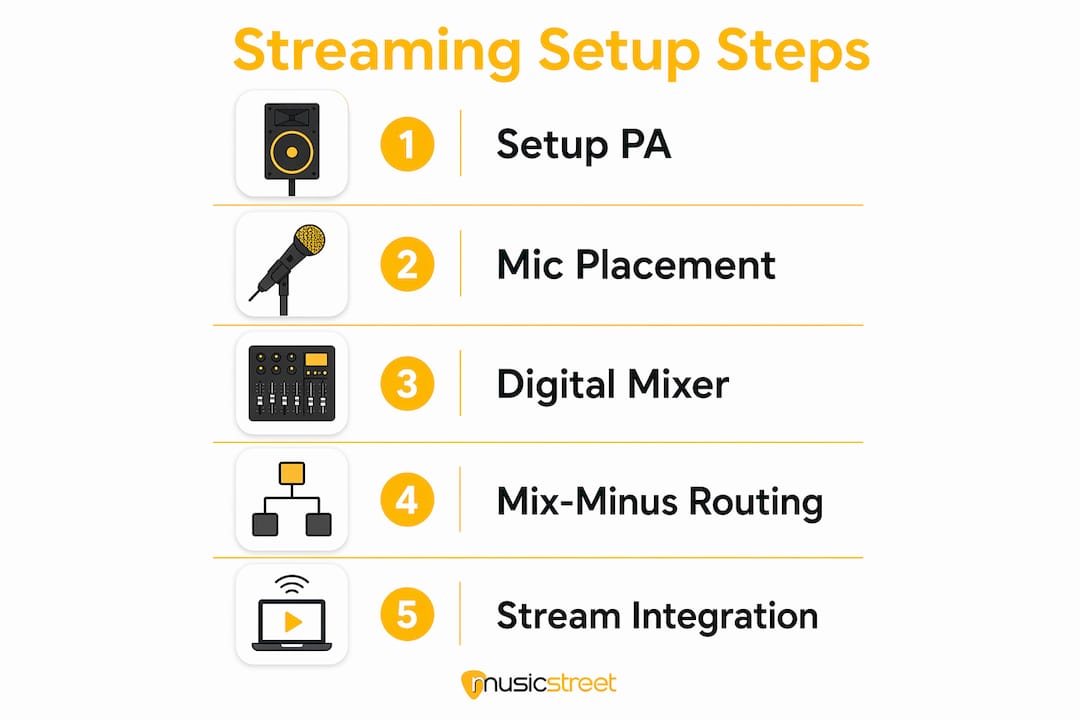
Mix-minus is the technique of sending the streaming computer a mix that excludes the audio return from the stream itself. Without it, any audio the streaming PC plays back (countdown videos, pre-recorded music) feeds back into the mix and causes a loop. On the StudioLive 32SC, you assign the stream return to a separate aux bus and exclude it from the main mix sent to the USB output. It takes five minutes to configure and saves a great deal of embarrassment mid-service.
Pro Tip: If your existing analogue mixer has an AUX OUT or REC OUT, you can tap that output with a Focusrite Scarlett Solo into the streaming laptop as an affordable first step, without replacing the desk.
How does OBS Studio integrate with your church audio setup?
OBS Studio is free, open-source software for Windows and macOS that combines video and audio sources into a single broadcast stream. For a church with a digital mixer feeding audio via USB, the setup is straightforward: select the mixer as the audio input device under Settings → Audio, and OBS treats it as a microphone source.
Hardware encoders versus software encoding
OBS running on a dedicated laptop or PC handles encoding in software, which works well for most churches. A hardware encoder such as the Magewell Ultra Stream takes the load off the computer entirely: it accepts HDMI or SDI video and analogue or digital audio inputs, encodes the stream internally, and pushes it to YouTube or Facebook without a PC in the chain. Hardware encoders are more reliable under load and simpler for volunteers to operate, but they cost significantly more than a laptop running OBS.
Configuring OBS for church services
- In OBS, go to Settings → Audio and select your digital mixer (or audio interface) as the Mic/Auxiliary Audio source.
- Open the Audio Mixer panel and watch the level meters during a sound check. Aim for peaks around -10 dB to -6 dB to avoid distortion while keeping the signal strong enough for online listeners.
- Set your audio bitrate to 160–192 kbps for stable quality on most streaming platforms.
- For multi-camera setups, add each camera as a Video Capture Device source within a scene. OBS lets you cut between scenes live, so one volunteer can switch from a wide sanctuary shot to a close-up of the preacher with a single click.
- Disable desktop audio in OBS unless you have a specific reason to include it, to prevent system notification sounds reaching the stream.
Pro Tip: A Stream Deck mapped to OBS scene changes lets a non-technical volunteer switch cameras, trigger lower-third graphics (speaker names, hymn numbers), and mute audio sources by pressing a single labelled button. It removes the need to navigate OBS menus during a live service.
For worship bands, a wireless guitar system feeding directly into the mixer keeps the stage tidy and eliminates cable noise from long guitar leads, which can otherwise appear as hum on the stream.
How to install a church sound and streaming system step by step
Planning before installation saves hours of rework. Walk the building first and answer these questions: Where does the preacher stand? Where is the best camera position (typically centre-rear, elevated 2.5–3 metres)? Does the existing mixer have a usable output for streaming? What is the upload speed of the church’s internet connection?
- Cable routing: Run XLR cables from microphone positions to the mixer location, keeping them away from mains power cables to avoid interference. For longer runs across large buildings, AVB or Dante networking over Cat6 Ethernet replaces analogue multicore.
- Audio signal path: Microphones → mixer inputs → main PA outputs to speakers, plus a dedicated USB or aux output to the streaming PC or hardware encoder.
- Camera integration: Mount cameras on fixed brackets or tripods at planned positions. Connect via HDMI to a capture card in the streaming PC, or use PTZ cameras over IP if the building has a network infrastructure.
- Internet connection: An adequate upload speed is required for reliable 1080p streaming, generally considered to be at least a few Mbps. Use a wired Ethernet connection from the router to the streaming PC; Wi-Fi is unreliable when many devices compete for bandwidth during a service.
- Testing checklist: Power on the mixer, interface, PC, and cameras in sequence. Record a 30-second test stream locally and play it back through headphones to verify audio sync, level, and clarity before going live.
Build a laminated checklist for the volunteer team covering every power-on step, audio level check, and OBS scene load. A checklist on the desk prevents the single most common cause of streaming failures: a forgotten step in the pre-service rush.
How do you keep stream audio consistent with volunteer teams?
Consistency is harder than quality. A well-configured system that a volunteer can operate confidently every Sunday beats a complex setup that only one person understands.
- Avoid the camera’s built-in microphone entirely. Even good cameras pick up room echo and ambient noise that sounds poor on a stream. Feed audio from the mixer directly.
- Monitor levels in OBS’s Audio Mixer during every service, not just at sound check. Levels drift as the room fills with people, which absorbs high frequencies and changes the acoustic.
- Use scene presets in OBS so volunteers load a saved configuration rather than rebuilding sources each week.
- Assign clear roles: one person on the PA mix, one on the stream (OBS and camera switching). Trying to do both from one position during a music-rich service is where mistakes happen.
- Test audio through headphones plugged into the streaming PC, not just by watching the OBS meters. Meters show level; headphones reveal clarity, echo, and phase problems that meters miss.
Pro Tip: Run a private test stream to a hidden YouTube event the week before any major service. Play it back on a phone through a Bluetooth speaker to hear exactly what a home viewer experiences. The difference between what sounds good in the room and what sounds good through a phone speaker is often surprising.
For churches exploring how to present their worship band instruments online, Musicstreet’s guide to showing guitars online step by step covers the signal chain fundamentals that apply equally to live streaming.
Key Takeaways
A complete church sound system for online streaming requires a direct audio feed from a digital mixer to OBS Studio, with levels peaking at -10 dB to -6 dB, an audio bitrate of 160–192 kbps, and a minimum upload speed of 5 Mbps for stable 1080p broadcast.
| Point | Details |
|---|---|
| Audio quality comes first | Viewers switch off for bad audio before they notice poor video; prioritise the mixer and microphone chain. |
| Use a direct mixer feed | Connect the digital mixer’s USB or AUX output to the streaming PC; never rely on a camera’s built-in microphone. |
| Target -10 dB to -6 dB peaks | Monitor OBS Audio Mixer levels during every service to avoid distortion and weak signal on the stream. |
| 5 Mbps upload minimum | Use a wired Ethernet connection and verify upload speed before going live for reliable 1080p streaming. |
| Simplify for volunteers | A Stream Deck mapped to OBS scenes reduces errors and removes the need to navigate software menus mid-service. |
FAQ
Which sound system is best for churches streaming online?
A column PA system such as the HK Audio Polar 8 MkII paired with a digital mixer like the PreSonus StudioLive 32SC gives most UK churches the best combination of in-room coverage and direct USB audio routing to a streaming PC.
How do I make my church live stream sound better?
Connect the mixer’s output directly to the streaming computer via USB or an audio interface, and stop using the camera’s built-in microphone. Monitor levels in OBS aiming for peaks of -10 dB to -6 dB and set your audio bitrate to 160–192 kbps.
What is the best audio interface for a church livestream?
If your digital mixer has a built-in USB audio interface (as the PreSonus StudioLive 32SC does), no separate interface is needed. For analogue desks, a Focusrite Scarlett Solo connected to the mixer’s AUX or REC output feeds a clean signal into the streaming laptop.
What do I need for a complete church sound system?
You need microphones for the preacher and worship band, a PA system for the room, a digital mixer to route and process audio, a streaming computer running OBS Studio or a hardware encoder such as the Magewell Ultra Stream, at least one camera, and a wired internet connection with at least 5 Mbps upload.
How do I sync audio with video in OBS Studio?
Select your digital mixer as the audio input in OBS Settings → Audio, then use OBS’s Audio Mixer panel to monitor sync during a test recording. If audio leads or lags the video, apply a positive or negative offset in milliseconds under the audio source’s Advanced Audio Settings until the two align.

Share:
Semi-hollow vs hollow body guitars: the full guide
How to read bass guitar tabs: a beginner's guide