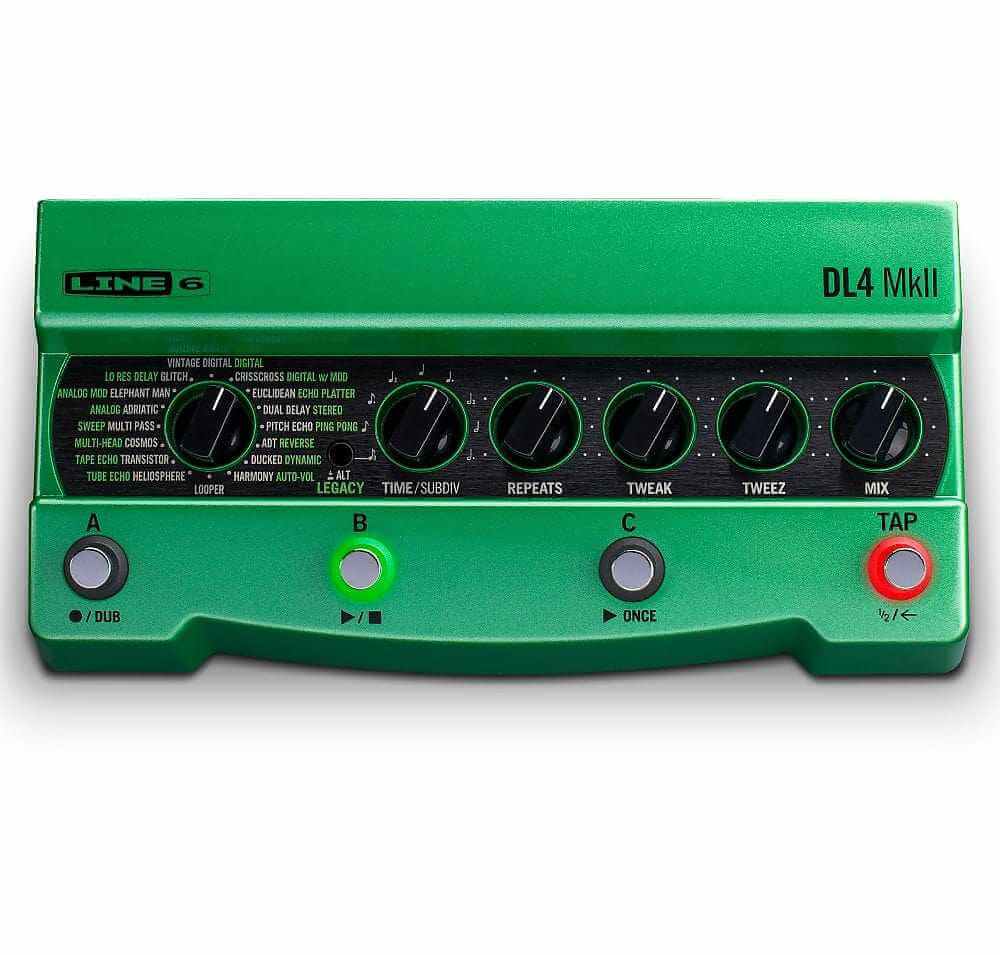


Line 6 DL4 II
ピックアップの空き状況を読み込めなかった
現在、10 Chequers Courtでのピックアップはできません
Subject to eligibility and approval. Final payment amounts and terms are shown at checkout.
Looking for a Line6 Effects?
This exact instrument has found a home, but our Huntingdon workshop receives fresh deliveries weekly. Every guitar in stock is physically on-site and receives our signature pro setup before dispatch.
Similar In-Stock Instruments Available Now


Looking for this specific spec or serial number? Contact our workshop directly at 01480 431222 or email [email protected] to discuss custom orders and upcoming allocations.
Established 2014
Family run independent
12 Months Warranty & in store setups
FREE UK shipping
Price Match
Secure Payment
Credit is offered by Shopify International Ltd. (FRN: 1031087)in partnership with Affirm UK Limited. Shopify International Limited is an Appointed Representative of Affirm U.K. Limited, trading as Affirm, which is authorised and regulated by the Financial Conduct Authority (FRN: 756087). Affirm’s company number is 10199101 and its registered office is at C/O TMF Group, 1 Angel Court, 13th Floor, London, EC2R 7HJ.
Line 6 DL4 MkII Effects and Presets
MkII Delays List
To choose one of the MkII delays as your active delay model, toggle the ALT/LEGACY button so that it is not lit, then turn the Selector knob to any of the delay model names that appear in white text.
Legacy Delays List
To choose one of the Legacy delays as your active delay model, toggle the ALT/LEGACY button so that it is lit green, then turn the Selector knob to the desired delay model name that appears in green text.
Secret Reverbs List and Controls
New to the DL4 lMkII, you can now use any reverb along with your currently active MkII or Legacy delay model. To select a reverb, press and hold the ALT/LEGACY button while turning the Selector knob to the position that corresponds to the desired model. To access the reverbs’ parameters, just press and hold the ALT/LEGACY button while turning the knobs.
Line 6 DL4 MkII MIDI Settings
Connect the MIDI output of your external MIDI controller device to the DL4 MkII MIDI IN, and DL4 MkII will respond to MIDI Program Change (PC), Note On, MIDI CC, and MIDI Clock messages, as covered within this chapter.
When connected to your computer, DL4 MkII also receives and transmits the same MIDI messages via USB (with the exception of MIDI Clock messages, which can only be received for sync and routed to MIDI THRU).
Connect DL4 MkII’s MIDI OUT/THRU to your other MIDI gear (or connect USB to your computer) to optionally pass any incoming MIDI messages “THRU” to another device or computer app.
IMPORTANT! DL4 MkII MIDI Transmissions
DL4 MkII does not transmit MIDI messages for any of its own actions, but will pass incoming MIDI out via its MIDI OUT/THRU and USB MIDI ports. All MIDI control is global, meaning, all commands listed in this chapter will control their respective DL4 MkII functions regardless of the currently loaded preset.
Using MIDI Clock for Tempo Sync
DL4 MkII can receive MIDI Clock via its MIDI IN, as well as via USB MIDI, to allow you to sync the tempo from other effects devices. Once DL4 MkII receives the MIDI Clock “start” command, you’ll see DL4 MkII’s TAP switch LED change to flashing blue to indicate it is actively following the received MIDI Clock tempo rate. Use the Global Settings to modify either “Receive MIDI Clock” or “MIDI THRU” settings.
- Off – DL4 MkII ignores MIDI Clock messages received.* The tempo can be set manually by tapping on the TAP footswitch.
- On – DL4 MkII syncs to incoming MIDI Clock messages. While set to On, presses
of the TAP footswitch are ignored. - Auto – DL4 MkII syncs to incoming MIDI Clock messages. The TAP switch’s LED flashes blue once MIDI Clock sync is established. While set to Auto, tempo can optionally be set manually by tapping on the TAP footswitch.
No specifications available.
No extras information available.